

MEGA Hopex
MEGA HOPEX (now integrated or branded under Bizzdesign Hopex) is a leading platform for Enterprise Architecture (EA) and Governance, Risk, and Compliance (GRC). It connects business strategy, IT infrastructure, data governance, and risk management into a unified single source of truth.
If your organization previously maintained data models in MEGA HOPEX, you can migrate them into a Hackolade Studio Polyglot model instead of having to recreate them by hand. From the Polyglot model, you can then derive the physical models of your targets. You can also import the physical layer of the export directly into a Db2 for z/OS model.
MEGA logical models stored in .xmg files
Note
Starting with Hackolade Studio v8.13.6
Hackolade Studio reads the XML exchange files exported from MEGA HOPEX, with the .xmg extension, and imports their logical layer.
Inside MEGA files, the different objects are mapped to equivalent objects in a Hackolade Studio model, mainly:
- packages, mapped to containers;
- classes, mapped to entities, with their technical names and descriptions;
- attributes and their data types (with length, precision and scale where applicable), technical names, descriptions and default values;
- constraints: required, unique keys, (composite) primary keys, and relationships with their cardinality and verbs.
Some transformations occur, and extraneous information is ignored. When the export contains names in several languages, Hackolade Studio imports the English name. For descriptions and comments, Hackolade Studio uses the default language declared in the .xmg file. When this language is Neutral, or when the file declares none, it uses the text without a language.
Hackolade Studio converts MEGA data types to the equivalent Polyglot types. When an attribute has no data type in the export, or a type that cannot be mapped, it gets the default data type, and a warning in the log names the attribute.
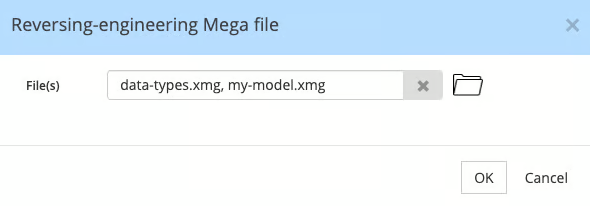
To import a MEGA model from the GUI application, first create a Polyglot model. Then go to Tools > Reverse-Engineer > MEGA Files... You may select one or more MEGA files to import in your open Hackolade Studio data model, including the definition file of your data types when your model uses them:
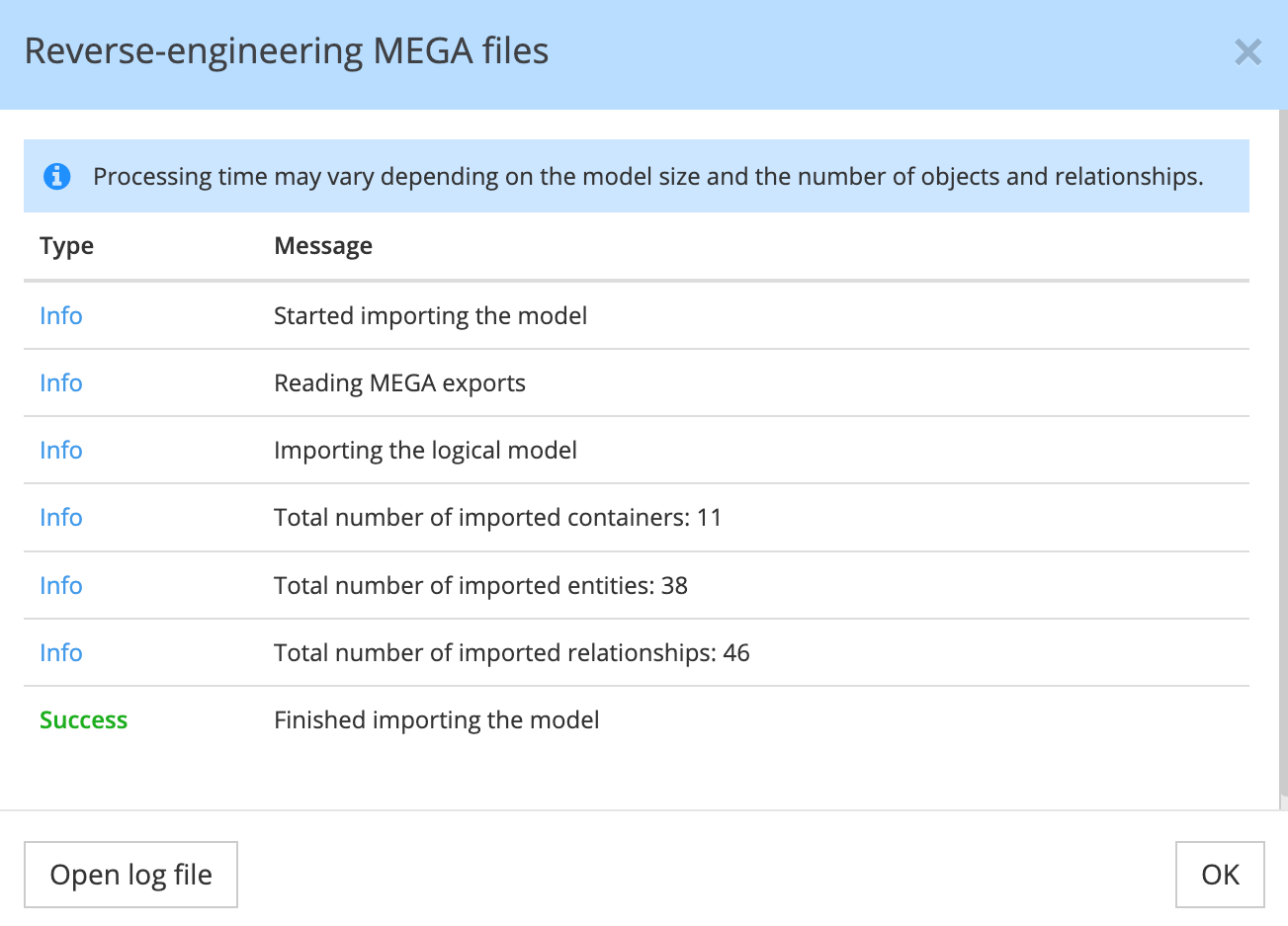
At the end of the import, the dialog window shows the number of containers, entities, and relationships added to the model, including possible warnings. Click Open log file to read the full list. Each warning starts with the path of the attribute (container, entity and attribute) and its MEGA ID, then gives the reason: the export states no data type for the attribute, or its MEGA type is not mapped to a type of the target.
MEGA physical models for Db2 for z/OS
Note
Starting with Hackolade Studio v8.13.7, and with v0.2.3 of the Db2 for z/OS plugin
Hackolade Studio also reads the physical layer of the .xmg exchange files, and imports it into a Db2 for z/OS model. It imports every database of the export whose DBMS is Db2 for z/OS, that is, whose DBMS name starts with "DB2 OS" or "DB2 for z/OS". If the export contains no such database, the import stops with an error message.
Inside MEGA files, the different objects are mapped to equivalent objects in a Hackolade Studio model, mainly:
- databases: mapped to containers, with their names and comments;
- tables: mapped to entities, with their business and technical names and comments;
- columns and their data types (with length, precision and scale where applicable);
- business and technical names and comments;
- constraints: primary keys, unique keys, and foreign keys mapped to relationships with their ON DELETE rule;
- indexes.
Hackolade Studio converts MEGA data types, or their pivot types, to the equivalent Db2 for z/OS types. When a column has no data type in the export, or a type that cannot be mapped, it gets the default data type, and a warning in the log names the column. A foreign key between tables of different databases is not imported.
To import a MEGA physical model from the GUI application, first create a Db2 for z/OS model. Then go to Tools > Reverse-Engineer > MEGA Files... and select the files to import, as for logical models.
User-defined data types
In MEGA, you can define your own data types and use them on attributes. These definitions are usually exported in a separate .xmg file.
When you select this definition file together with the model file, Hackolade Studio replaces each user-defined type with the data type it is based on, and converts it like any other MEGA type. If you do not select it, the log shows a warning such as MEGA type "<type name>" is not mapped to a type of the target for each attribute concerned, and the attribute gets the default data type.
Known limitations
Currently, the following MEGA concepts are not imported:
- generalizations (supertypes and subtypes);
- abstract classes and classes used as stereotypes, together with the associations that point to them.
The reverse-engineering works in Polyglot and Db2 for z/OS models. We enable reverse-engineering target by target: if you need one not yet supported, please contact support@hackolade.com.
Bulk import
Using the Command-Line Interface, you can orchestrate a batch import of MEGA files into Polyglot or Db2 for z/OS models, with the command revEngDiagram. In the argument --file, separate several files with a semicolon, for example a model file and the definition file of your data types, or use the * wildcard to select the matching files of a folder.