
Authentication and authorization
Hackolade Studio is a client-only application. Whether it runs as a desktop application or in a browser tab from https://studio.hackolade.com, no Hackolade server is used.
Data models are JSON files stored in your own Git repositories, and Studio reads and writes them directly, whether you use GitHub, GitLab, Bitbucket, or Azure DevOps. Hackolade maintains no user directory and holds no customer data, so the application has no account for anyone to log in to.
Hackolade Studio delegates authentication and authorization to the storage layer, i.e. your Git repository provider which handles, using the identities, roles, and review policies of your organization. As a result, the sign-in prompt appears the first time Studio accesses a repository, not when the application opens.
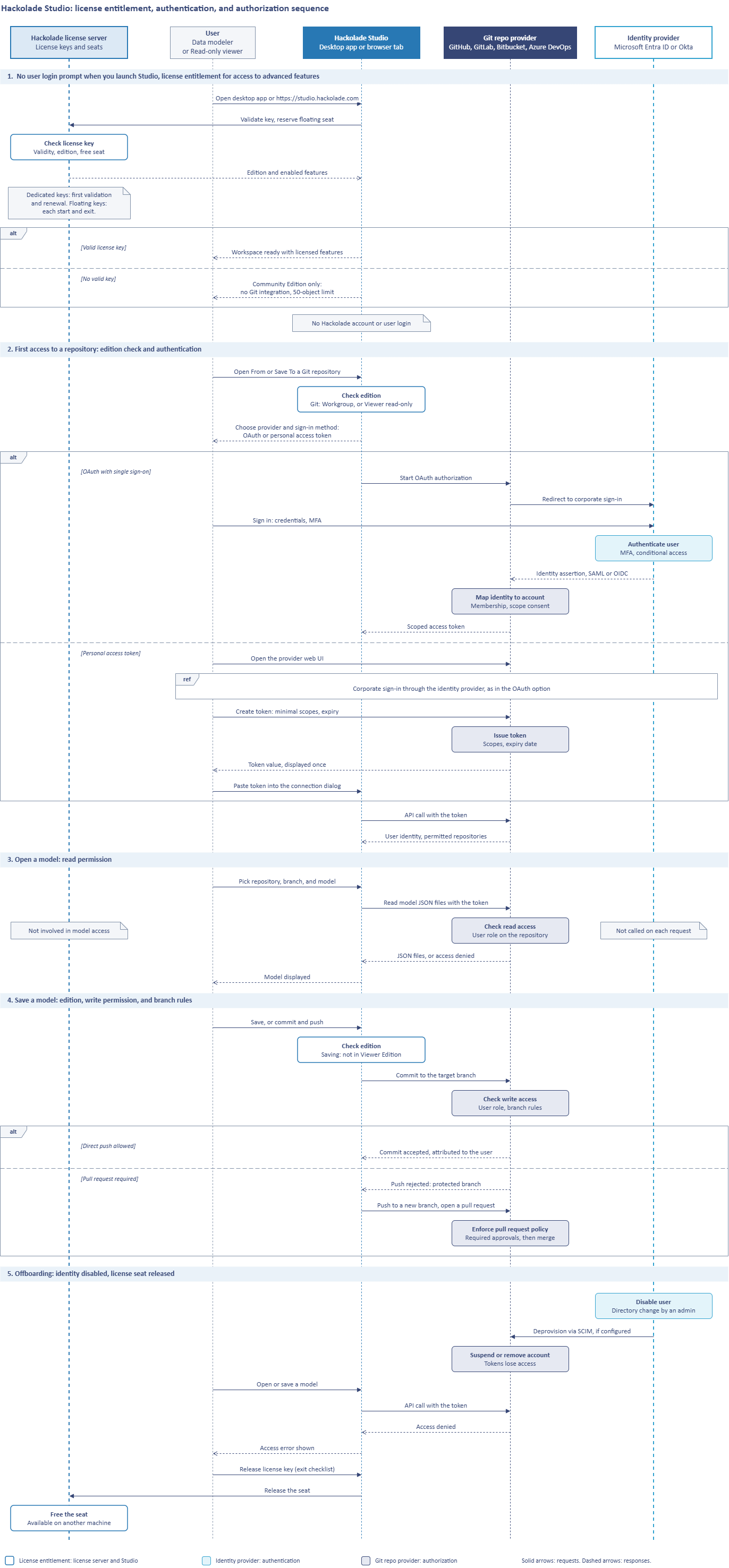
The full sequence diagram can be found at the bottom of the page..
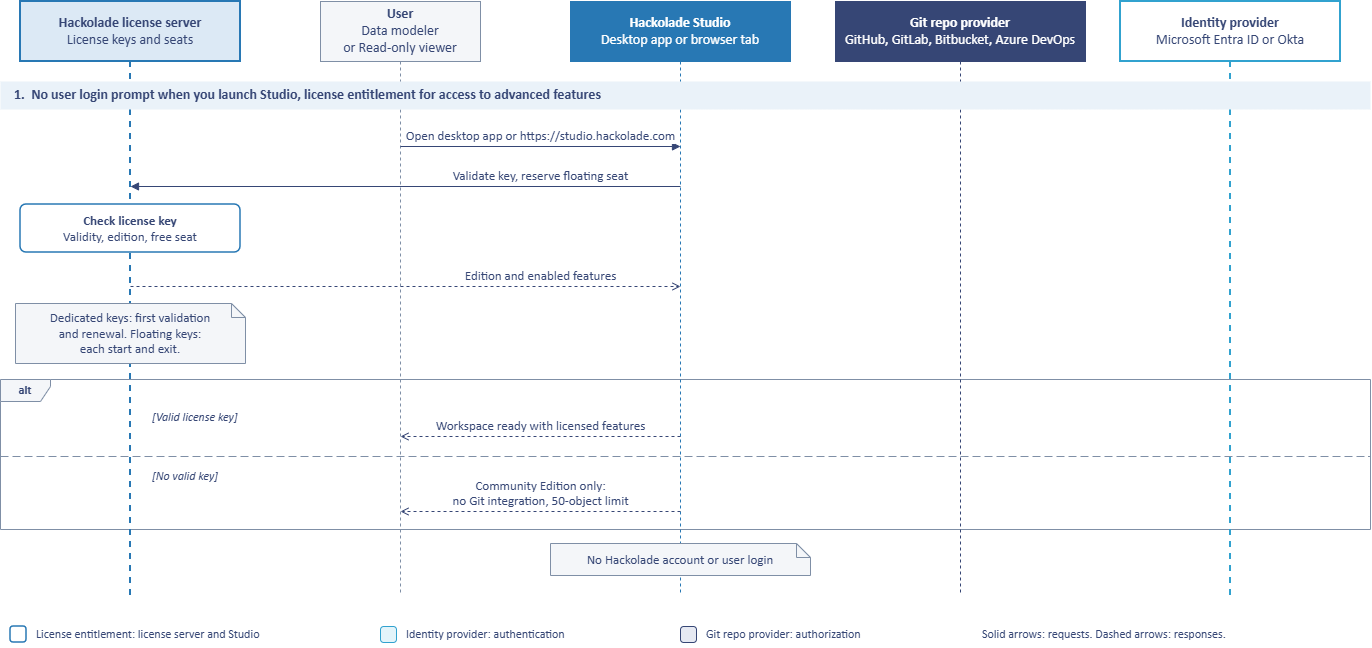
1. No user login prompt when you launch Studio, license entitlement for access to advanced features
When the user opens the desktop application or navigates to https://studio.hackolade.com, the workspace opens up directly and Studio requests no credentials. The user can start modeling right away, with no network authentication. For access to advanced features, the user must validate a license key. Studio sends the key, and the license server returns instructions to unlock the features. The features enabled in Studio are set by the license key together with its parameters on the license server.
2. First access to a repository: authentication
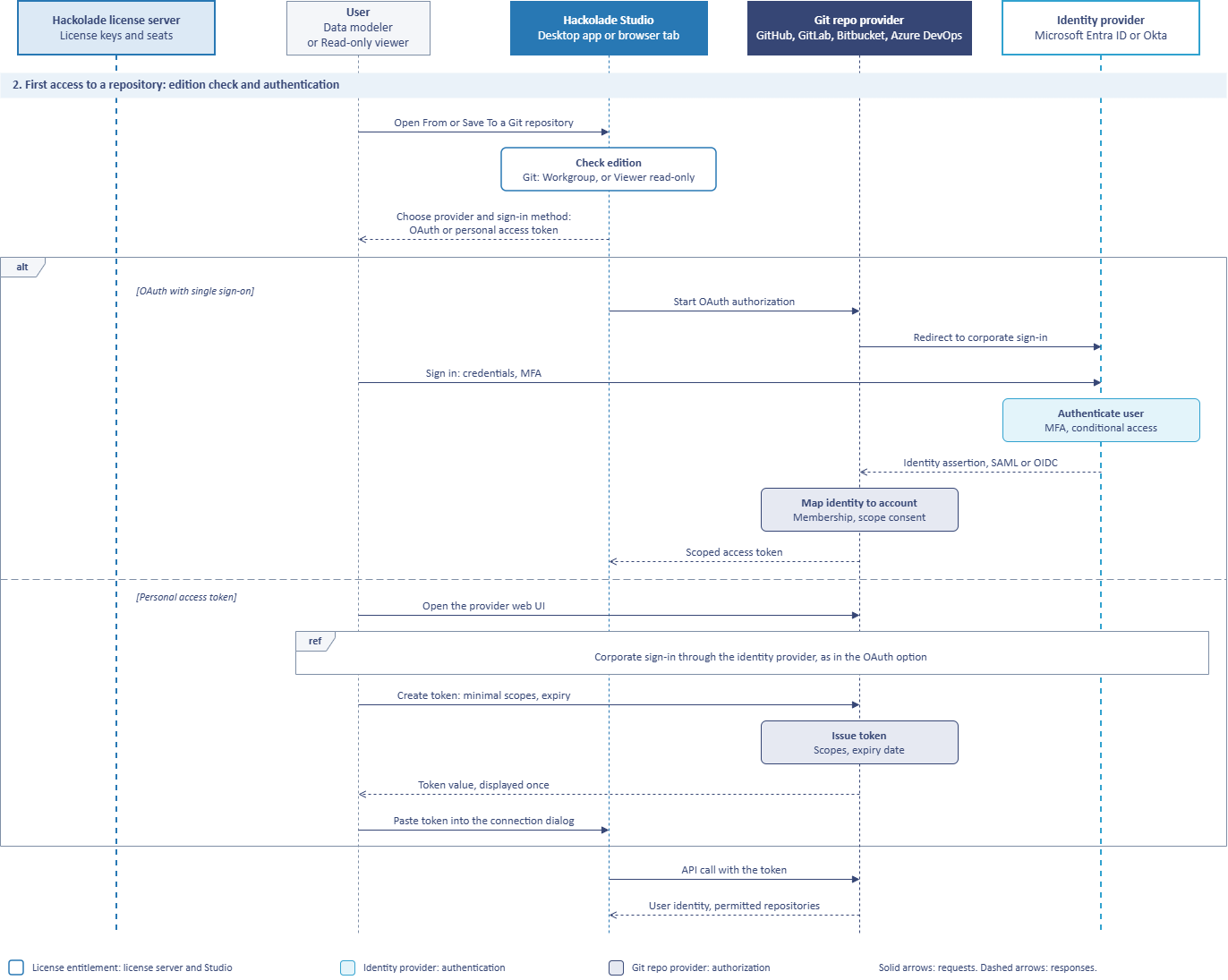
The first time the user opens a data model from a repository (File > Open From), or saves a data model to a repository (File > Save To), or follows a shared model link, Studio prompts for a one-time connection setup. The requested information includes the provider, its host name for self-hosted instances, and the sign-in method. Depending on the provider and how it is hosted, Studio connects through OAuth or a personal access token.
With OAuth, the Git repo provider hands the sign-in to Entra ID or Okta. The identity provider authenticates the user under the organization's MFA and conditional access policies and returns a signed SAML or OIDC assertion. The provider maps that identity to an account, records the user's scope consent, and issues Studio's token.
On GitHub cloud, Studio in the browser signs in through a GitHub App named Authorization for Hackolade Studio. An organization administrator installs the app and limits it to selected repositories, so users only reach repositories that are both within the app's scope and within their own permissions. Connections to self-hosted GitHub Enterprise Server use personal access tokens, as OAuth is not provided.
With a personal access token, the identity provider takes part only while the user signs in to the provider's web UI to create the token. The user generates the token in the provider's web interface, limited to the scopes Studio requires, and with an expiration date, then pastes it into the Studio connection dialog. An administrator or the user can revoke the token from the provider at any time.
In both cases, Studio calls the provider's API with the token, and the provider returns the user's identity and the repositories available to that user. Users who work in a locally cloned repository with the desktop application authenticate through their Git client instead, typically the Git Credential Manager with browser sign-in, or SSH keys. Studio does not store those Git credentials. They are stored in the Git client's credential store.
The process is documented, for each provider, in these pages.
3. Open a model: read permission
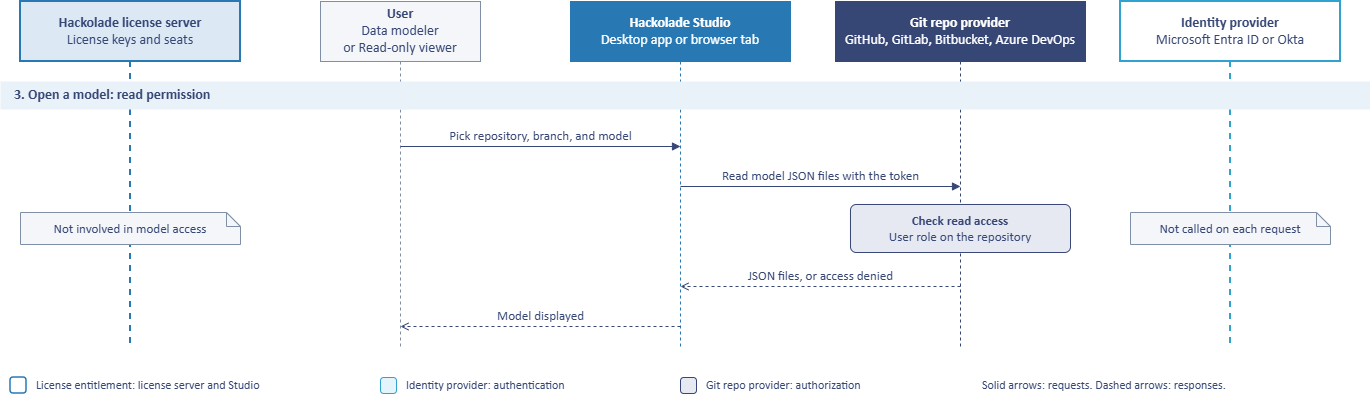
When the user picks a repository, branch, and folder, then opens a data model, Studio requests the JSON files from the provider with the user's token. The provider checks the user's role on that repository before returning anything.
With read access, the provider returns the files and the data model opens in Studio. Without read access, the request fails with an access-denied error. Repositories outside the user's permissions do not appear in the repository list in the first place.
4. Save a model: write permission and branch rules
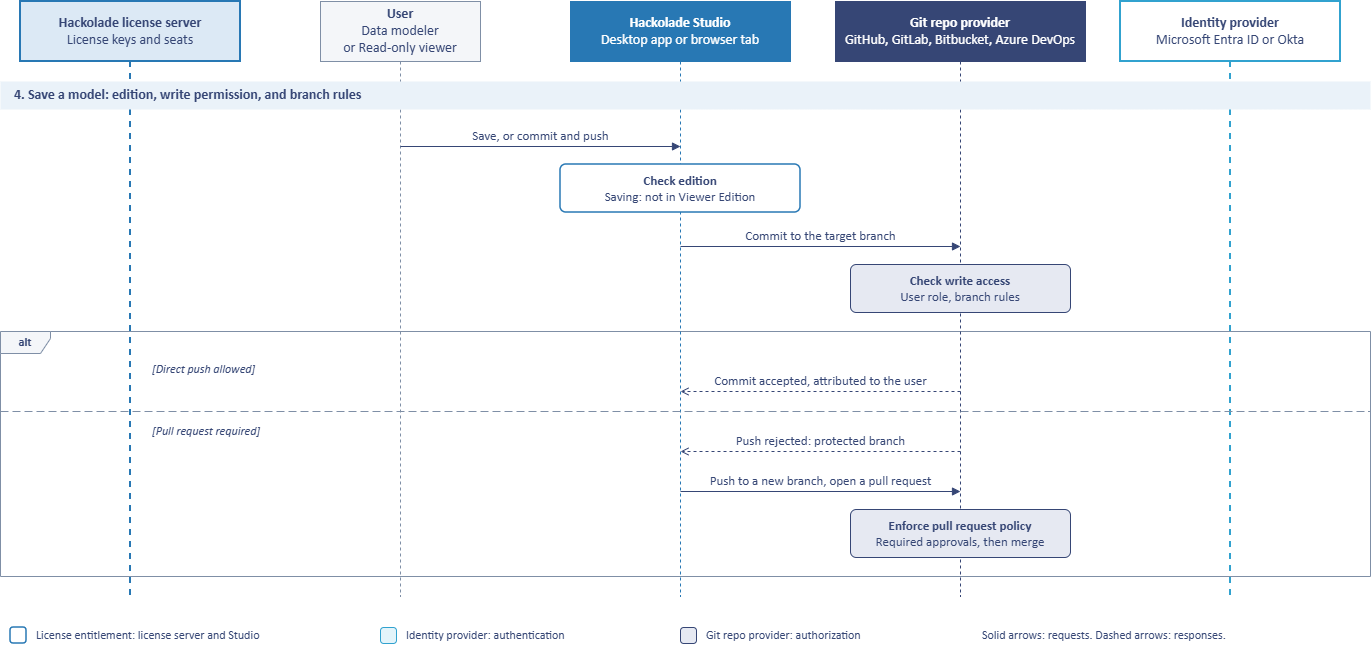
To save a data model, Studio sends the commit to the target branch, and the provider checks both the user's write access to the repository and the rules configured on that branch. When the user has write access and no rule blocks direct pushes, the provider records the commit under the authenticated user's identity.
When a repository administrator has protected the branch, for example by requiring pull requests, the provider rejects a direct push. From Studio, the user then pushes the changes to a new branch and submits them for review as a pull request that targets the protected branch. Reviewers and maintainers can examine the proposed changes in Studio's graphical compare view, and the provider enforces the repository's policy, such as required reviewers or a minimum number of approvals, before it allows the merge.
Because every request goes to the provider with the user's own token, the provider applies the same access rules to data models as to any other content in those repositories. When an administrator removes a user's access to a repository or revokes the token, the provider denies that user's next request, and there is no separate Hackolade user list to keep in sync. The provider's commit history, pull request records, and audit logs show who changed each model and who approved the change.
5. Offboarding: account disabled in the identity provider
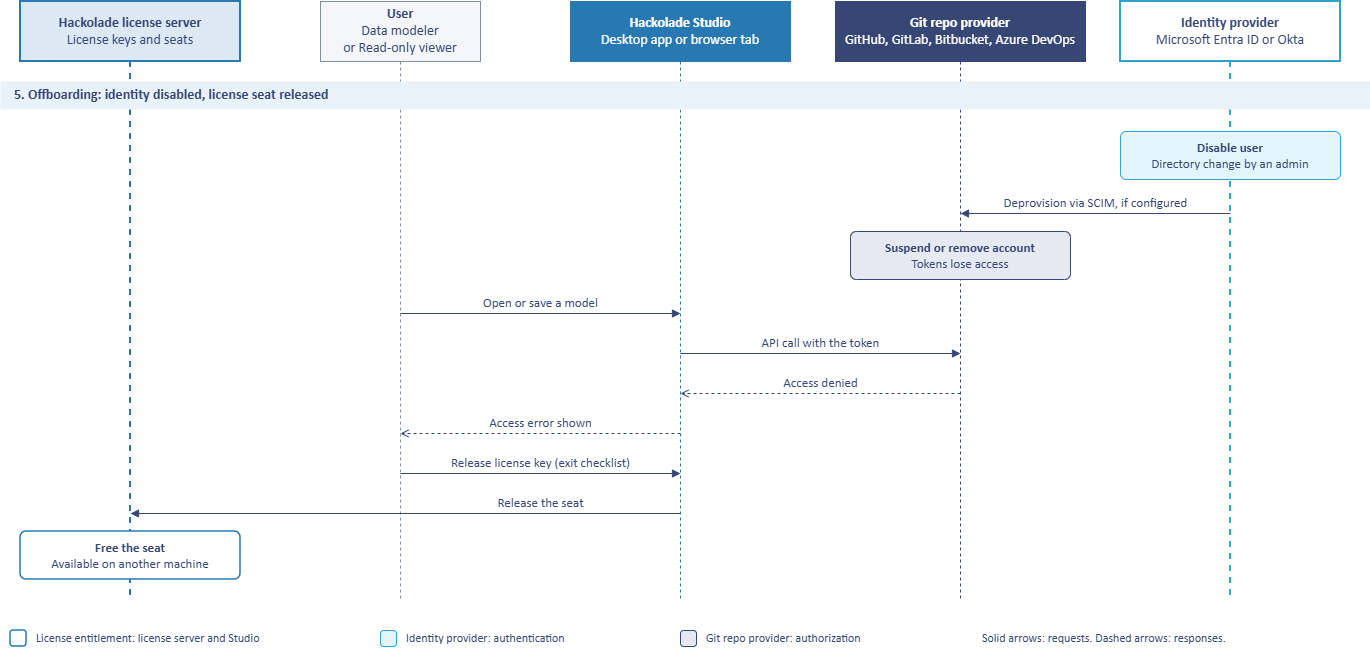
With SCIM (System for Cross-domain Identity Management) provisioning configured, disabling the user in Entra ID or Okta suspends or removes the account at the provider, and Studio's next call is denied. Without SCIM, tokens that were already issued can stay valid until an administrator revokes them at the provider or they expire. That is one more reason to recommend short token lifetimes.
Full diagram
Here is the full diagram, for reference: