

GitHub
The information below applies to repositories on github.com in the cloud as well as GitHub Enterprise Server. It explains how to grant Hackolade Studio access to your GitHub account, which is a pre-requisite for using the features "submit for review" and "review change requests".
Personal access tokens
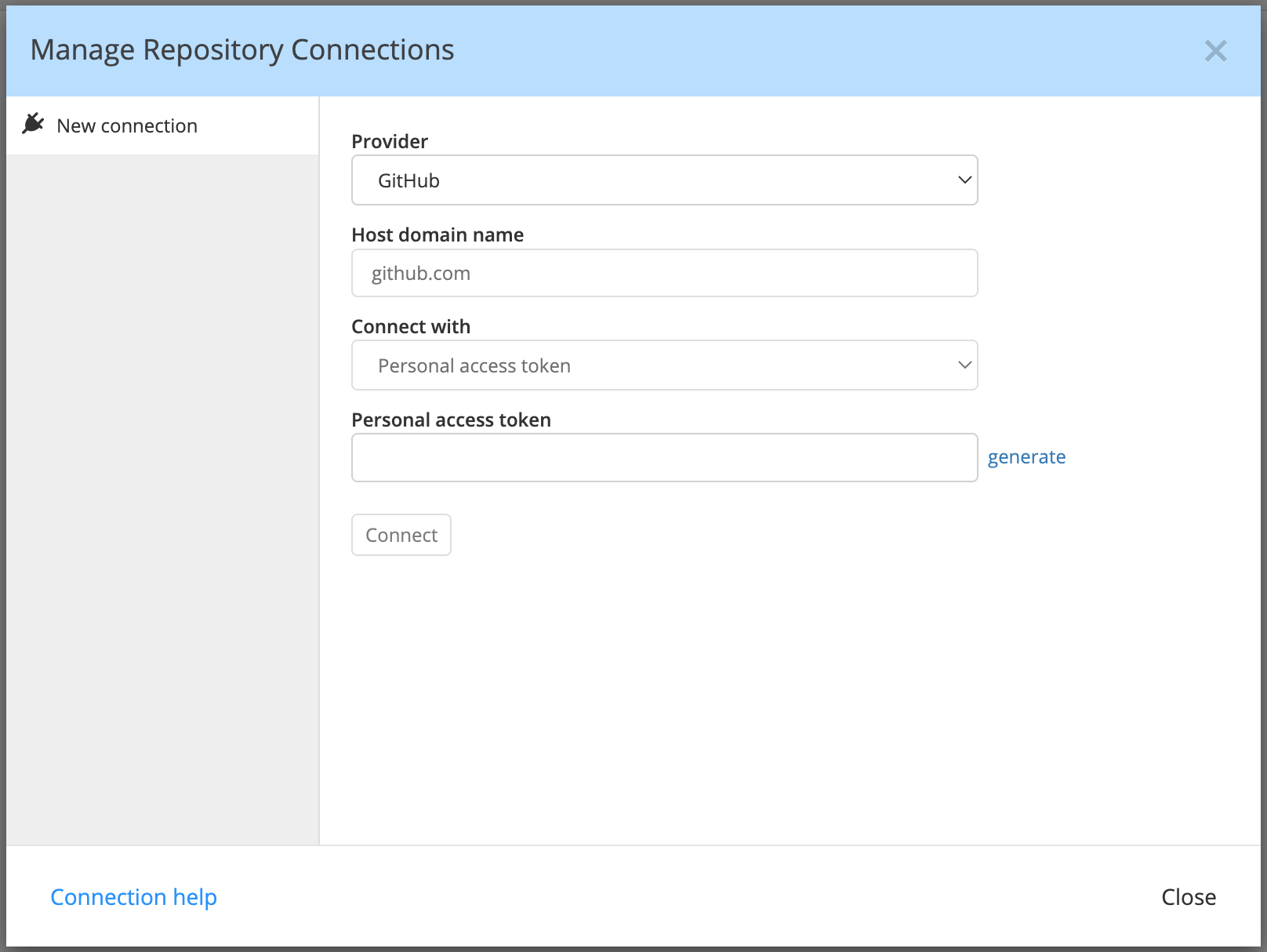
In the repository connection manager, click on the "generate" link located to the right of the input field for the personal access token. You can find more information on how to generate a personal access token in the GitHub documentation.
Clicking on the "generate" link brings you to the GitHub form pre-filled with most of the information needed to be provided. Note that, in terms of permissions / scopes, Hackolade Studio only needs "repo" (aka full control of private repositories).
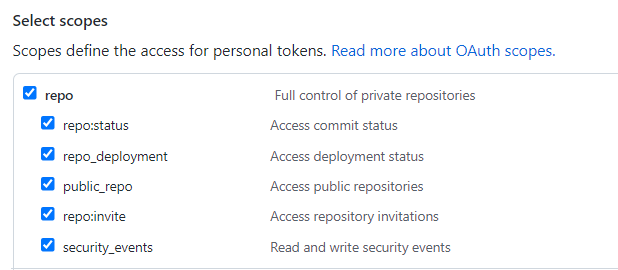
If you don't have sufficient rights to issue tokens, you may have to request one from your administrator.
If you need to re-issue an expired token, then:
- navigate to your list of personal access tokens on GitHub;
- select the token that you are using for Hackolade and click the "Regenerate token" button;
- edit the connection in Hackolade, as described above, and copy-paste the new token from GitHub.
If you don't have a valid Personal Token, you may get the error message below, indicating that your token has passed its expiration date, or that it does not have the right scopes enabled
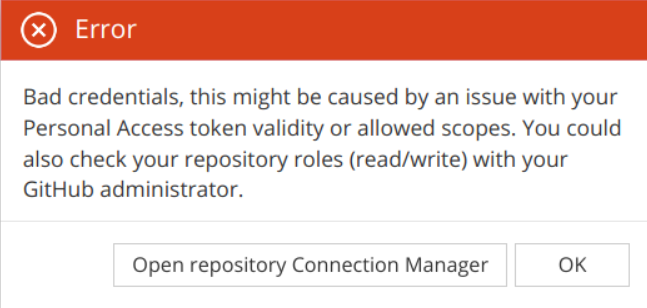
If you see this message, please follow the instructions above.
OAuth
Important: this option is only available on github.com (Enterprise or not) where we can control the declaration of our app as a trusted source. OAuth for Hackolade Studio is NOT available with GitHub Server (self-hosted) as we have no such access to the instance.
As an alternative to generating a personal access token, GitHub can also let you grant Hackolade Studio access to your account through OAuth.
From Hackolade Studio Desktop
For instructions when using Hackolade Studio in the Browser, the setup is different. See dedicated section further down...
From the menu Repository > Manage Repository Connections, create a new connection, select the provider and specify the domain name if necessary, then select the connection method OAuth:
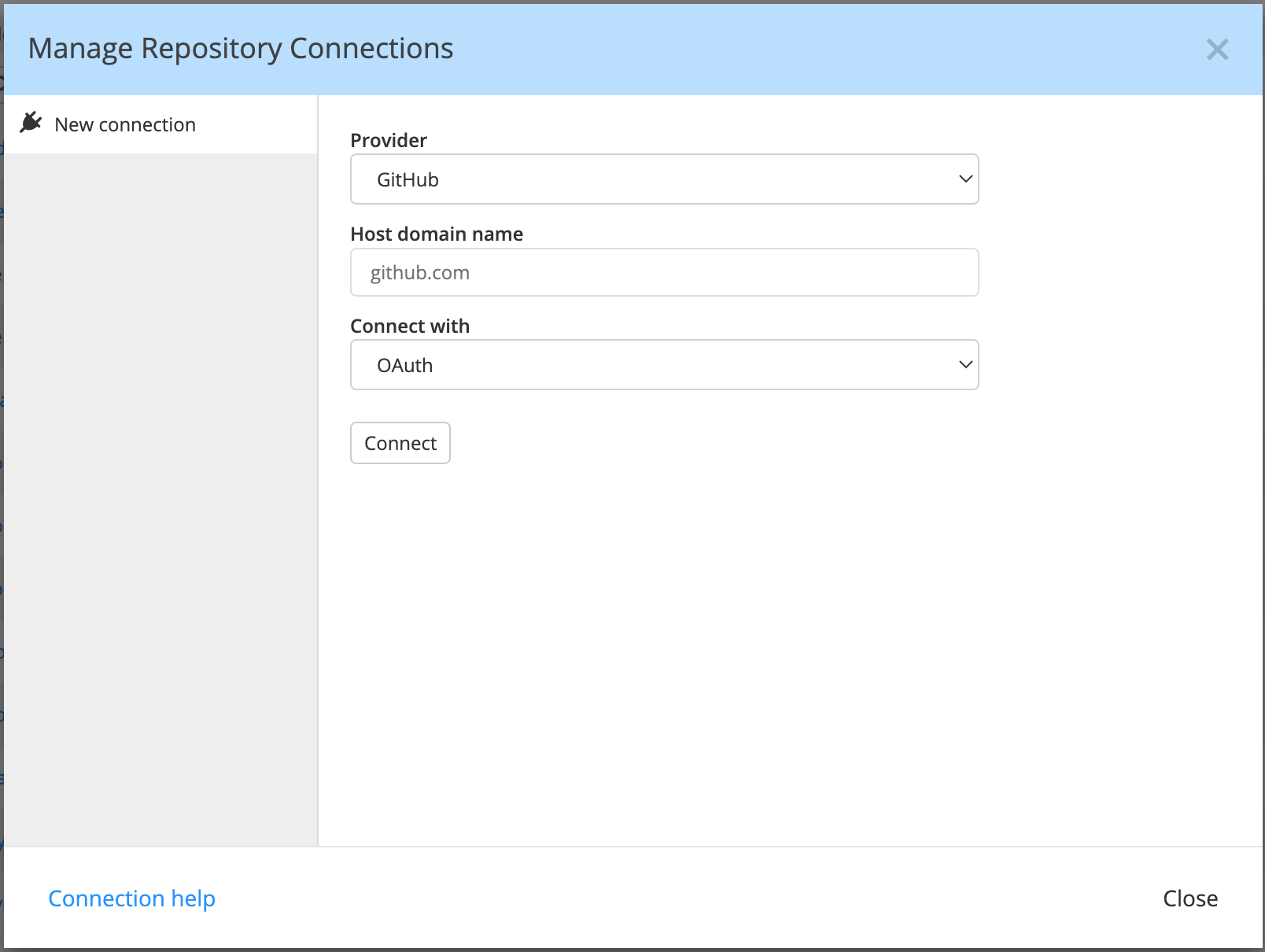
Then click on the "Connect" button to display the instructions:
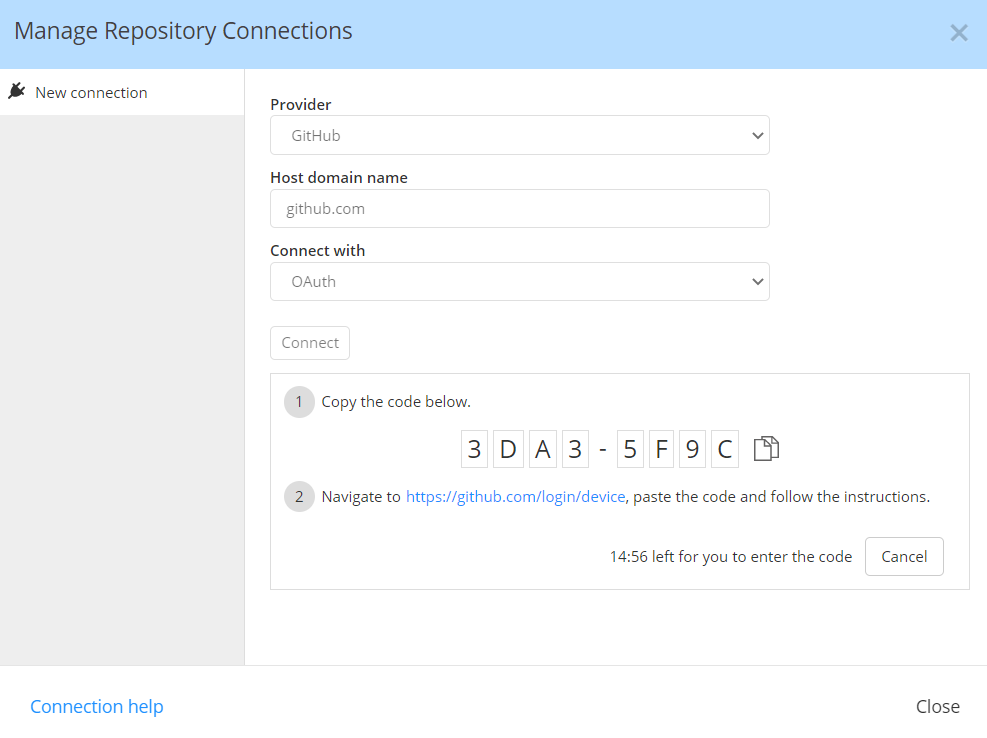
You just need to click on "Copy code & open browser". This will open a page in your browser where you can paste the temporary code.
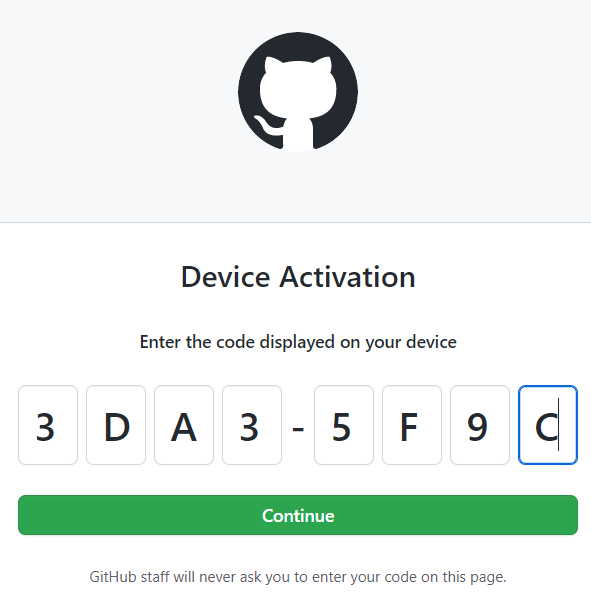
click on "Continue", then confirm by clicking the "Authorize hackolade" button. Note that Hackolade only requests the minimum subset of permissions for it to function properly.
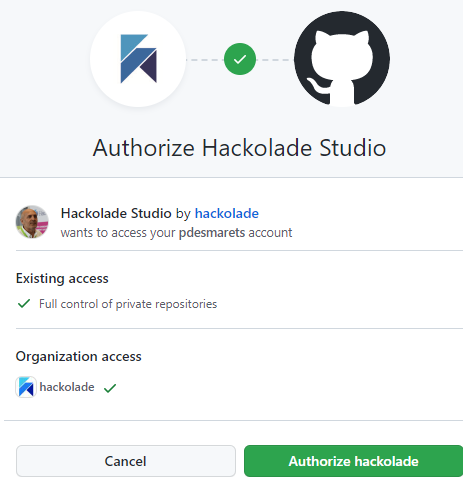
Hackolade Studio should now have access to GitHub.
From Hackolade Studio in the Browser
For instructions when using Hackolade Studio Desktop, the setup is different. See dedicated section above...
Generally, the administrator for your organization will have set things up for you to easily connect using your Entra ID single sign-on. If that's the case, you can skip the next section for Administrators. Otherwise, please have your administrator read the information below.
In Hackolade Studio for the browser, connecting to GitHub uses OAuth with PKCE through a GitHub App, so you can sign in with your GitHub user. That sign-in proves *who you are*.
Separately, GitHub controls whether an integration may see private repositories in an organization through the GitHub App installation and repository access (which repositories the app is allowed to access, and for which organizations it is installed). If the GitHub App is not installed or authorized for the organization and repositories your team needs, modelers may not see or open data models stored in those repos, even after a successful OAuth sign-in.
Understanding both steps avoids confusion when “I am connected” but “I still do not see my org’s private repositories.”
The app Authorization for Hackolade Studio is a GitHub App which is used for organization and repository access, following GitHub’s model for granting an application access to organization resources and specific repositories. Once installed in your GitHub organization, it allows users to connect with Single Sign-On from https://studio.hackolade.com/
Note: the setup requires multiple steps because GitHub separates user authentication (OAuth) from organization-level approval and repository-scoped access (GitHub Apps). This approach improves security for organizations, but it can mean individual users must involve an org admin when private repositories are involved.
Administrators
Use the GitHub UI to install or update the Hackolade GitHub App for the organization and set repository access according to your organization's policy (for example “Only select repositories” for least privilege, or “All repositories” if policy allows). You can do this, using this direct link https://github.com/apps/authorization-for-hackolade-studio/installations/select_target then Click the Configure button for the Hackolade app.
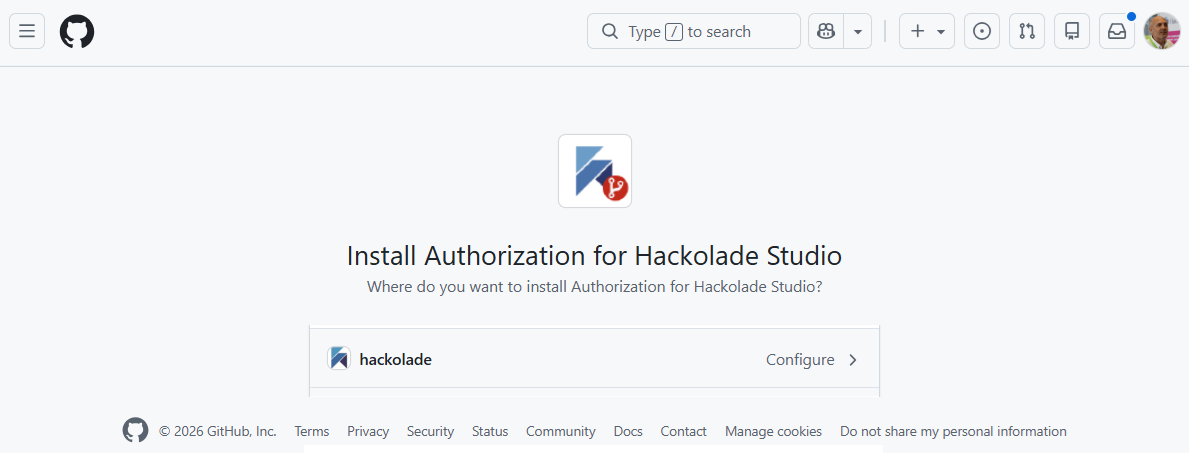
This action will get you into the screen below where you can define whether the access is granted to all the repos in the organization (probably not an adequate option) or select one or more repositories that Hackolade Studio users will be allowed to access:
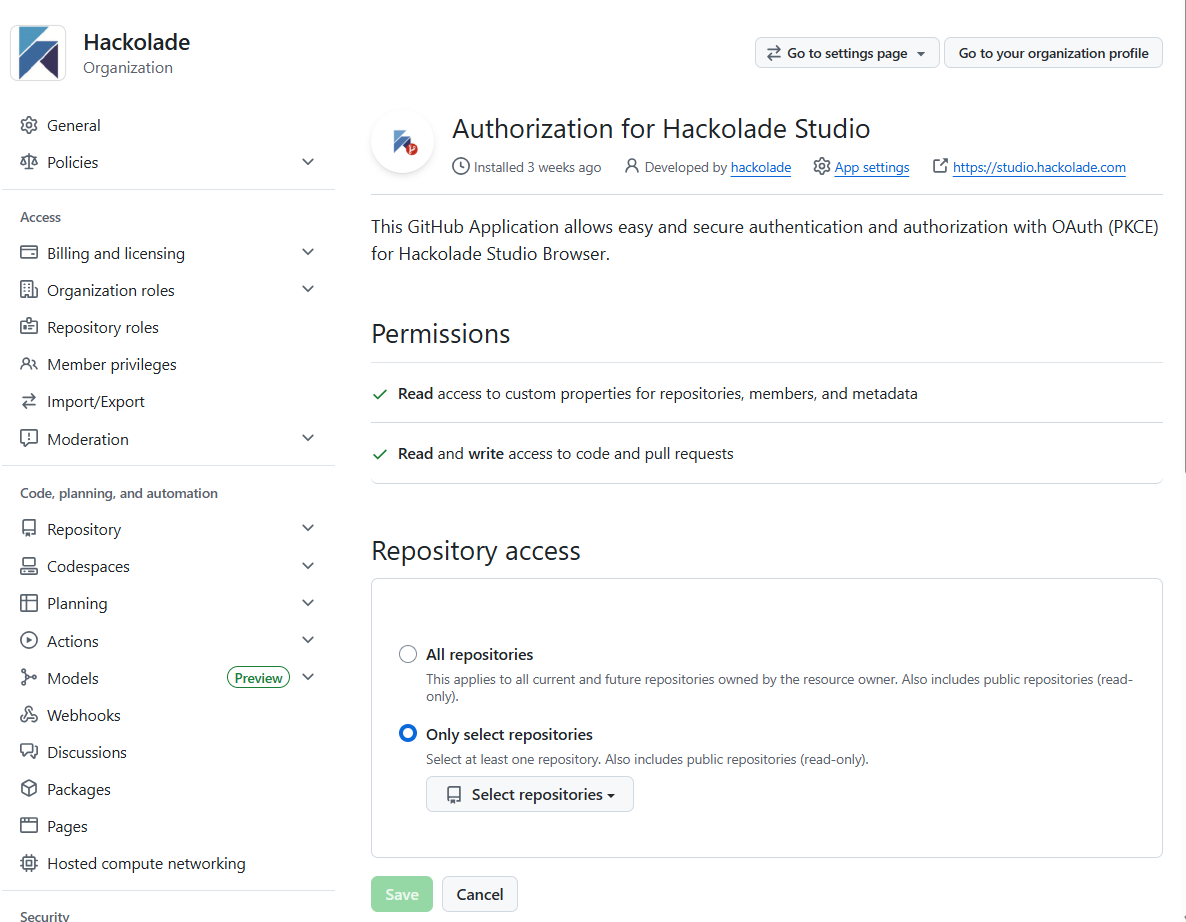
The screen is also reachable by organization administrators on the organization’s Installed GitHub Apps page at
https://github.com/organizations/ORG_NAME/settings/installations
For example, for the Hackolade organization:
https://github.com/organizations/hackolade/settings/installations
Users
As noted above, the GitHub app Authorization for Hackolade Studio is required to have been installed and configured in order for users to have access. If the app has not yet been installed, users have the opportunity to request from their administrator(s) to do so, in which case the latter will receive an email such as this one:
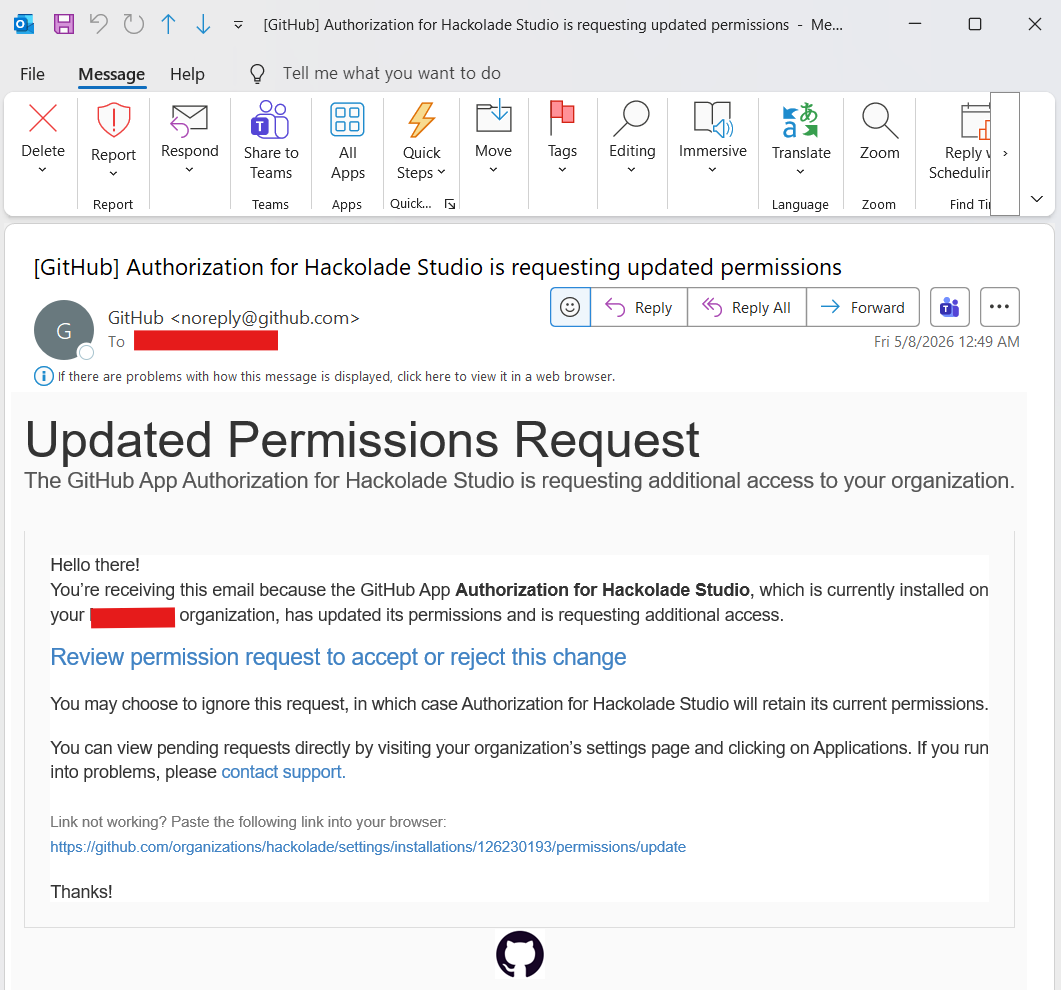
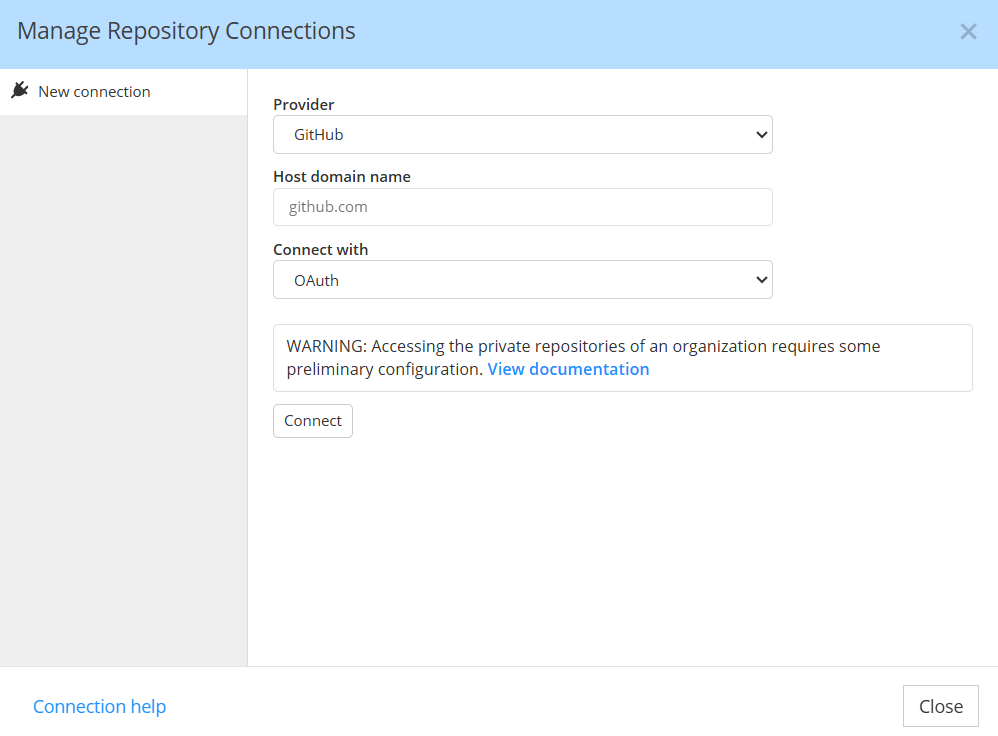
Once the GitHub App for Authorization of Hackolade Studio has been installed and configured, go to Repository > Repository connections, and select GitHub (i.e. NOT GitHub Server, as this functionality is not possible with self-hosted GitHub Enterprise) then click the Connect button:
You should be seeing this temporary tab:
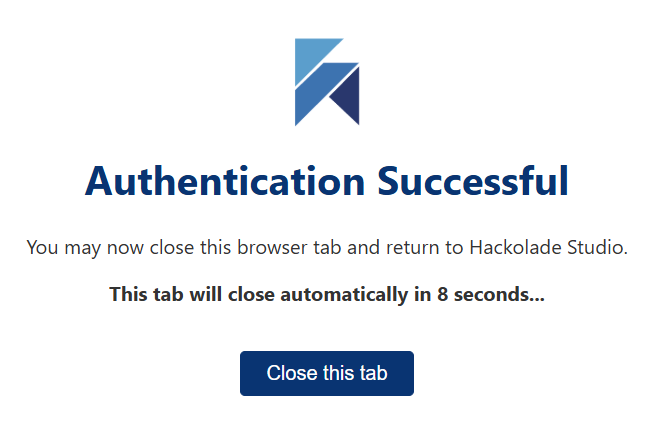
If you see the Authentication Successful tab, you should engage your administrator to review the information in the section above.