

From PowerDesigner
While there is still the possibility to use the XSD method described below, there is a much more powerful and easy method of directly reading PowerDesigner files. See this page for more details.
Deprecated
If you have data models in PowerDesigner and want to leverage them in Hackolade Studio, you need to first export them to XSD, following the instructions below. Then you should consult this page for an overview of the import functionality in Hackolade Studio.
You may refer to the following pages for more information:
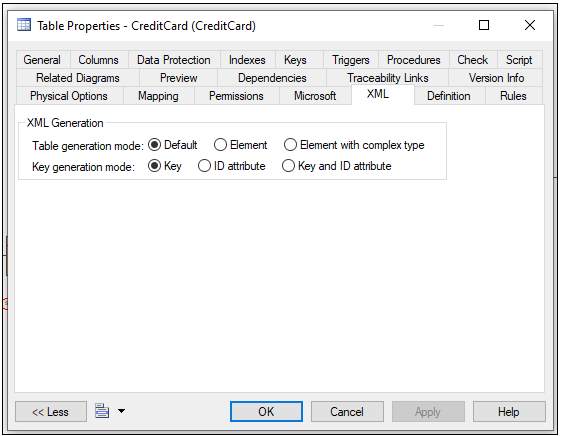
To generate the XML model with configuration so primary keys and foreign key relationships: https://help.sap.com/viewer/856348b84a7c479489d5172a630f014d/16.7.00/en-US/c81551706e1b1014b477f70e345cba01.html
Generate a PowerDesigner physical model (PDM) from a logical model (LDM)
If you already have a physical model, you may skip this step and go to the next one.
You may also view this short video on YouTube.
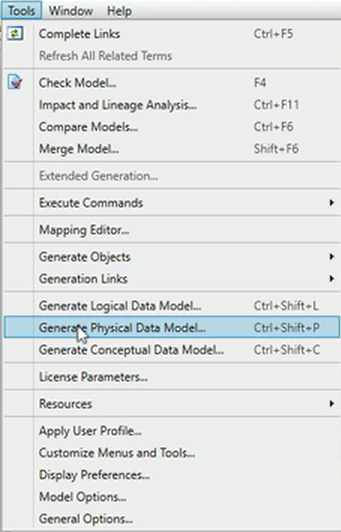
In PowerDesigner with your logical data model open, go to Tools > Generate Physical Data Model:
Then choose the DBMS platform for the physical model
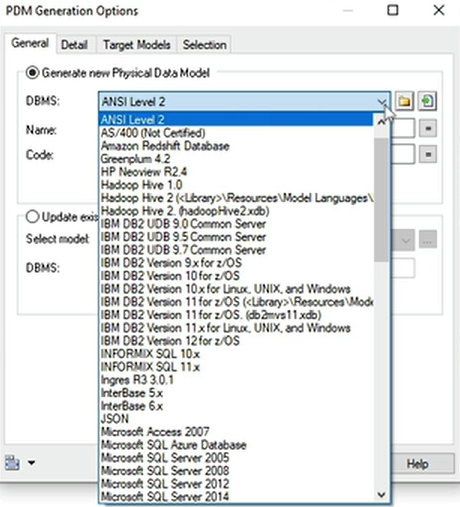
And make any changes necessary in the Detail tab for model check and or lineage.
When you click OK, a physical data model gets created in PowerDesigner.
Generate a PowerDesigner XML model (XSM) from a physical model (PDM)
If you already have an XML model, you may skip this step and go to the next one.
You may also view this short video on YouTube.
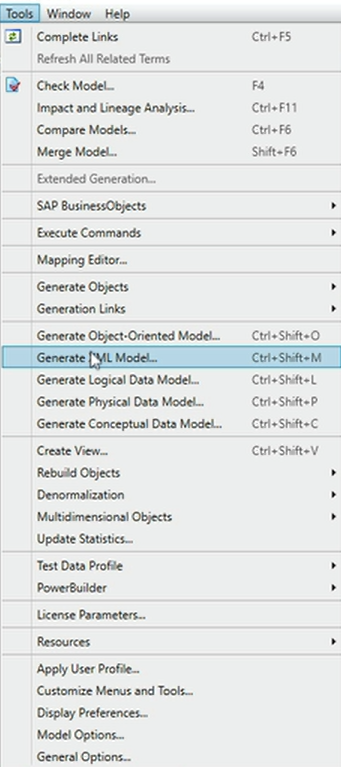
In PowerDesigner with your physical data model open, go to Tools > Generate XML Model:
Then give your model a name:
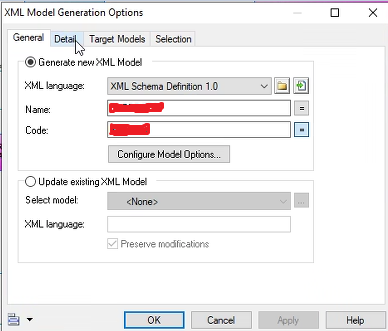
And in the Details tab, select the following options:
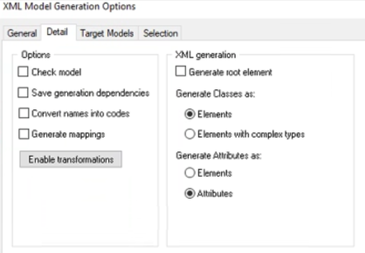
[optional] Click the Target Models tab and specify the target models for any generated shortcuts.
[optional] Click the Selection tab and select objects to generate.
Click OK to begin generation.
You may have to setup the XML extension appropriately:
Generate an XSD file from a PowerDesigner XML model (XSM)
You may also view this short video on YouTube.
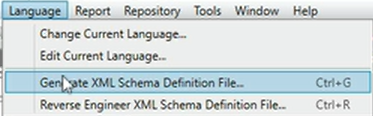
With your XSM model open, go to Language > Generate XML Schema Definition File
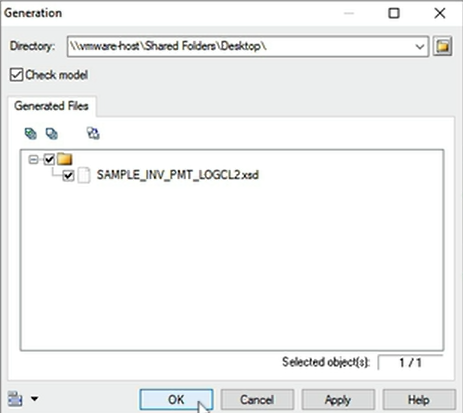
Choose the destination for your output
More info about XSM: https://www.powerdesigner.biz/documentations/powerdesigner-16.6-documentation-en/xml_modeling.pdf
Reverse-Engineer XSD file into a Hackolade model
After the successful export of your model to XSD, use the instructions in this page to import the XSD into a Hackolade Studio model for the target of your choice.
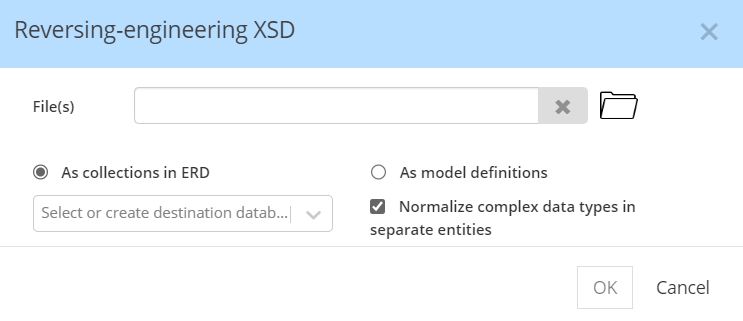
In Hackolade Studio, go to Tools > Reverse-Engineer > XSD Schema and select previously generated file.
As PowerDesigner represents some Foreign Key relationships with the embedding of the child table in the parent table, if it advised to select the check box "Normalize complex data types in separate entities". Even if your target model allows complex data types and denormalization, you may want to analyze your access patterns and do the denormalization manually.
After import, Hackolade Studio displays the resulting ER diagram.
If the XSD does not contain primary key and foreign key constraints, this reverse-engineering process cannot import them, but it is still possible to use the functionality to Infer PKs & FKs.