

AI chat panel
Important
AI features are available only in the Ultimate Edition.
The AI Assistant is a movable and adjustable side panel in Hackolade Studio where you ask an AI model about your data model. You may also direct it to create a new model and modify an existing one.
Note
Our AI integration philosophy is such that Hackolade does not get any of your data model, prompts and responses.
Go to the menu option AI > AI-Assisted Data Modeling Panel or click the sparkling icon in the toolbar.
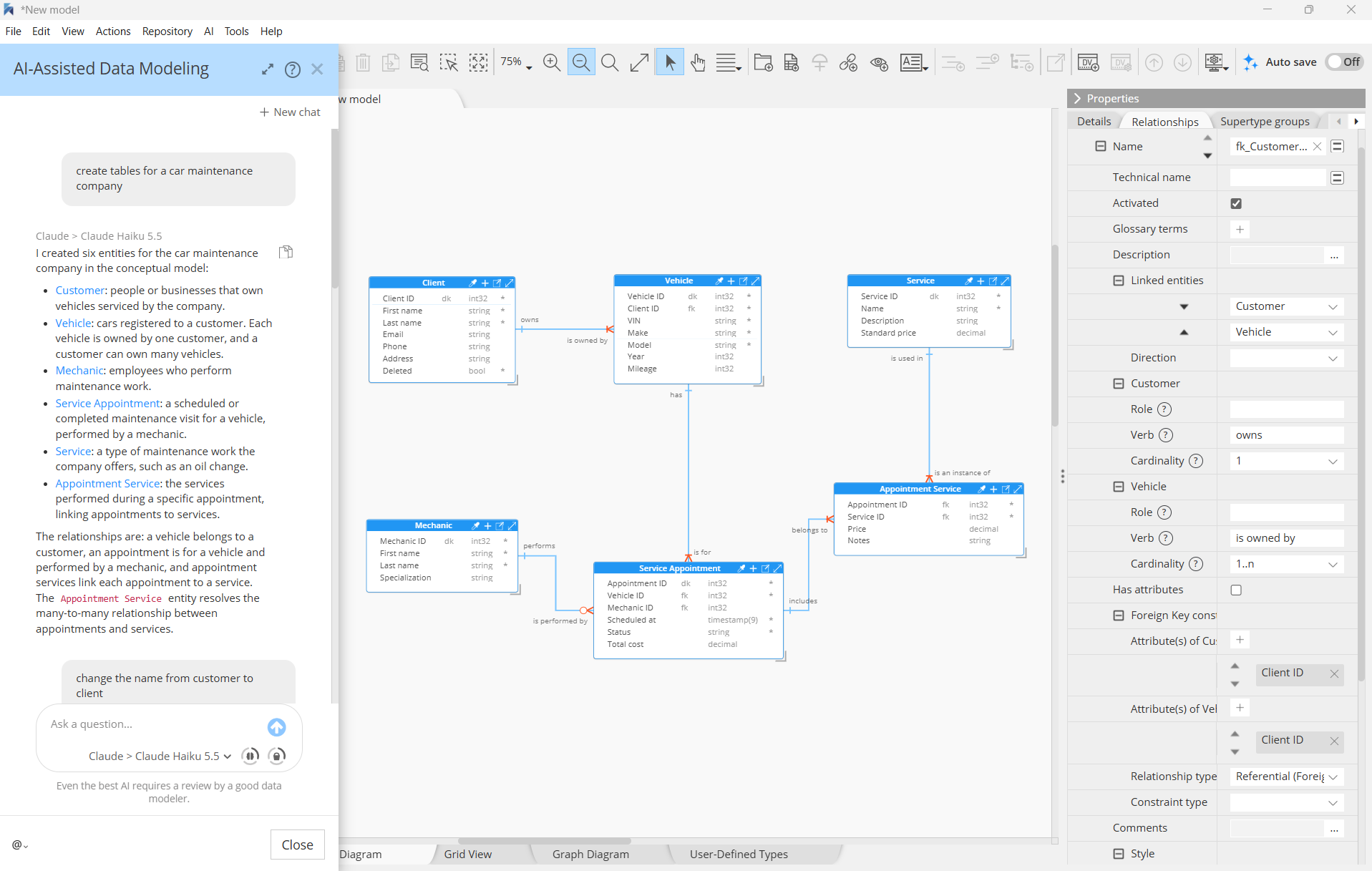
The AI-Assisted Data Modeling panel lets you interact with AI models directly within Hackolade Studio to create, modify, and enrich data models using natural language. Through a conversational interface, you can describe modeling requirements, request changes to existing structures, and ask questions about your data model.
AI-generated modeling changes are applied directly to the model and reflected in the Entity Relationship Diagram (ERD), allowing you to review and refine the results interactively.
What are the prerequisites?
Before using AI-Assisted Data Modeling, you must configure at least one AI provider connection in Hackolade Studio.
Open Manage AI Connections from the AI menu, or from the model selector in the AI-Assisted Data Modeling panel. Select your preferred provider and enter the corresponding API key. You can optionally specify a custom Base URL to connect through an enterprise gateway or to a compatible self-hosted model endpoint.
An active API subscription or appropriate API access is required for the selected provider. This is generally separate from consumer AI chat subscriptions.
You must also have a data model open in Hackolade Studio. You can start with an empty model and ask the AI to generate its structure, or work with an existing model to modify and enrich it.
Opening and positioning the panel
To open the AI-Assisted Data Modeling panel, select AI > AI-Assisted Data Modeling Panel from the main menu, or click the sparkling icon  towards the right side of the toolbar.
The panel can be moved and resized to suit your workspace. It can be displayed alongside the ERD or expanded to provide more space for longer conversations. This flexibility allows you to alternate between conversational instructions and visual inspection of the model.
Selecting an AI model
At the bottom of the panel, click the model selector to display the available AI models. The list is populated from the providers configured in the Manage AI Connections dialog.
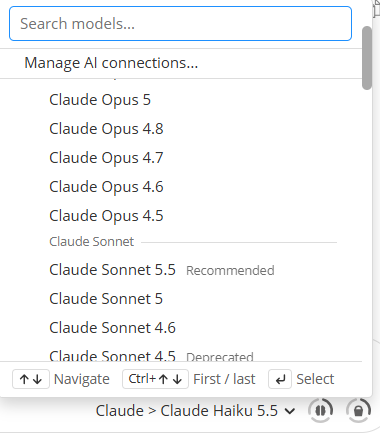
You can search for a specific model by name and select the one you prefer. Different models may offer different capabilities, response speeds, reasoning abilities, and pricing.
The model selector also provides access to Manage AI connections..., where you can add, edit, or remove provider configurations, including API keys and custom endpoints.
You can switch between available models as needed during your modeling activities.
Configuring model parameters
Depending on the selected model, additional parameters may be available to control its behavior.
Click the Intelligence & speed indicator next to the model selector to inspect and adjust the available settings.
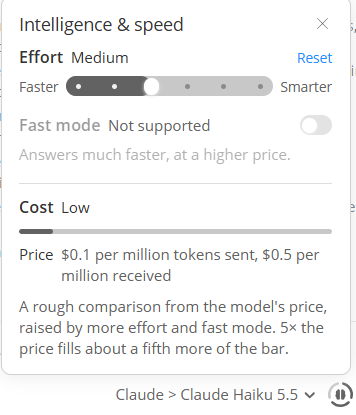
Effort: Controls how much reasoning the model applies to a request. Higher effort levels may be appropriate for complex modeling tasks, while lower levels generally favor faster responses. The available levels depend on the selected model, and some models do not support this parameter.
Fast mode: When supported by the provider and model, enables faster responses, potentially at a higher cost.
Cost: Provides an indication of the relative cost of using the selected model and displays its token pricing. The cost indicator helps compare models and understand how changes in reasoning effort or fast mode may affect API consumption.
Not all models support the same options. Unsupported settings are indicated accordingly. Click Reset to restore the default settings.
Interacting with the data model
Enter your instructions or questions in the text box at the bottom of the panel and submit them to the selected AI model.
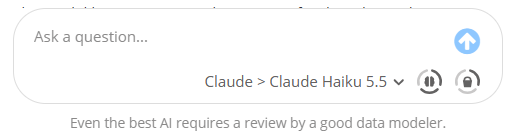
You can use natural language to describe the desired data structures, request modifications, or progressively refine an existing model.
For example, you might ask the AI to:
- Create a data model for a car maintenance company;
- Rename an entity from Customer to Client;
- Update attribute names to reflect the renamed entity;
- Add descriptions to all entities and attributes;
- Create or modify relationships between entities.
The AI interprets your instructions in the context of the current data model and provides textual explanations of the changes it performs, making it easier to understand and verify the results.
The conversation maintains context across successive requests, so you can progressively refine the model without repeating the entire specification. For example, after renaming an entity, you can simply ask the AI to adapt the corresponding attribute names.
How are changes applied to the model?
Unlike conventional AI chat interfaces that merely generate text or code, the AI-Assisted Data Modeling panel is integrated directly with Hackolade Studio's data modeling capabilities.
When you request a modeling change, the AI interprets your instructions and interacts with Hackolade Studio to perform the corresponding operations on the active data model. These may include creating entities, adding or modifying attributes, defining relationships, renaming objects, or updating descriptions.
Changes are applied directly to the data model, without requiring you to manually transcribe the AI's response, copy generated code, or recreate the structures yourself. The ERD and Properties pane reflect the resulting modifications, allowing you to inspect them immediately.
The AI can also perform multiple related operations within a single request. For example, renaming an entity and updating its associated attribute names can be accomplished through successive conversational instructions, while preserving the relevant relationships.
You can then continue refining the model through additional prompts or make manual adjustments using Hackolade Studio's standard modeling interface. AI-assisted and manual data modeling are complementary and operate on the same model.
The resulting changes become part of the current data model and can be saved through Hackolade Studio's normal model-saving workflow, subject to the Auto save setting.
Navigating between responses and model objects
When an AI response references an entity in the data model, its name appears as a clickable link.
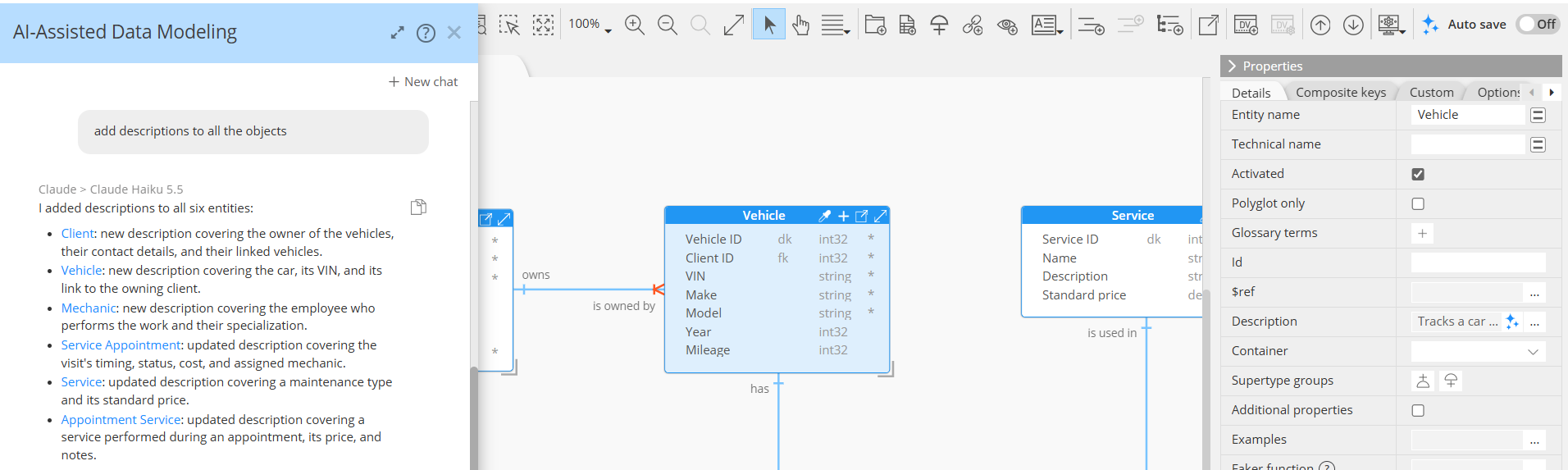
Click the entity name to navigate directly to the corresponding object in Hackolade Studio. This makes it convenient to inspect an entity mentioned in a response, review its properties, or verify modifications performed by the AI.
This integration between the conversation and the model provides a direct connection between textual explanations and the graphical representation of the data structures.
Copying responses
AI responses include a Copy icon that lets you copy the response text to the clipboard.
This is useful for sharing modeling explanations, documenting design decisions, or reusing generated descriptions in other applications.
Monitoring conversation length and token consumption
As a conversation progresses, the AI accumulates context from previous interactions. AI models have a limited context window, measured in tokens, which determines how much information they can process at once.
Click the Conversation length indicator near the model selector to inspect context usage.
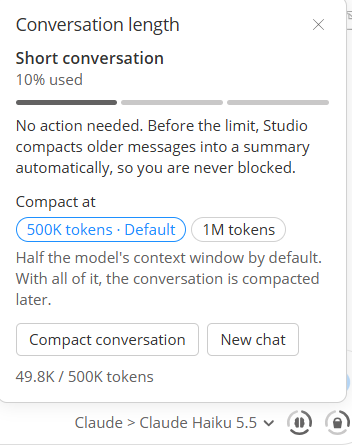
The indicator shows how much of the selected model's context window is currently occupied, expressed as a percentage and a token count.
You can also inspect token consumption to monitor the resources used by the conversation. Token usage is particularly relevant when working with large data models or lengthy sequences of interactions, as it can affect API costs.
Compacting a conversation
As the conversation grows, it may approach the context window limit of the selected AI model.
To continue working without losing the essential context, you can compact the conversation. Compaction summarizes the previous exchanges, retaining the most relevant information while reducing the number of tokens required to represent the conversation history.
This makes it possible to continue a long data modeling session while limiting context-window usage and associated token consumption.
Because compaction summarizes previous interactions, some details from earlier exchanges may no longer be retained in full.
Starting a new chat
Click + New chat at the top of the panel to start a fresh conversation.
A new chat resets the conversational context, allowing you to begin a separate modeling discussion without carrying over the previous exchange history.
This can be useful when switching to a different data modeling task, exploring a new approach, or starting over with a clean conversation.
Starting a new chat does not imply resetting the current data model. The model remains available for subsequent AI interactions.
Reviewing AI-generated changes
AI-assisted modeling can significantly accelerate the creation and evolution of data models, but AI-generated results should always be reviewed by a qualified data modeler.
Although the AI can interpret requirements, create structures, and modify model objects, it may make assumptions or produce results that do not fully reflect the intended business semantics, modeling conventions, or technical constraints.
The integration with Hackolade Studio allows you to inspect the generated structures directly in the ERD and Properties pane, make manual adjustments when necessary, and continue refining the model through conversational instructions.
Even the best AI requires a review by a good data modeler.